Ultimate Emulator / Feature guide
Your Collection
One place.
Ultimate Emulator turns the game folders you already have into one organized library. Point it at your folders once; it finds your games, sorts them by system and keeps everything on your PC.
- Your own game folders
- Search & filters
- Works offline
01 / Start with your folders
Bring your collection home.
Ultimate Emulator does not include games. It reads the legally obtained games you keep in your own folders. In the application, your library lives under Games in the left navigation.
-
Open Games
Choose Games in the left navigation. On a fresh install it is empty and offers Add Games.
-
Add a game folder
Choose Add Games, or go to Settings → Library → Game Folders and add a folder. Each folder is searched along with its subfolders, so a single top-level folder is often enough.
-
Let it scan
Ultimate Emulator scans the folder and adds the games it recognizes. Use Scan for Games to run it again yourself. New games you place in a folder appear automatically.
-
Check what is ready
The Ready filter shows the games that can be played right now. A game for a system that needs BIOS or firmware you have not provided yet waits until that firmware is in place.
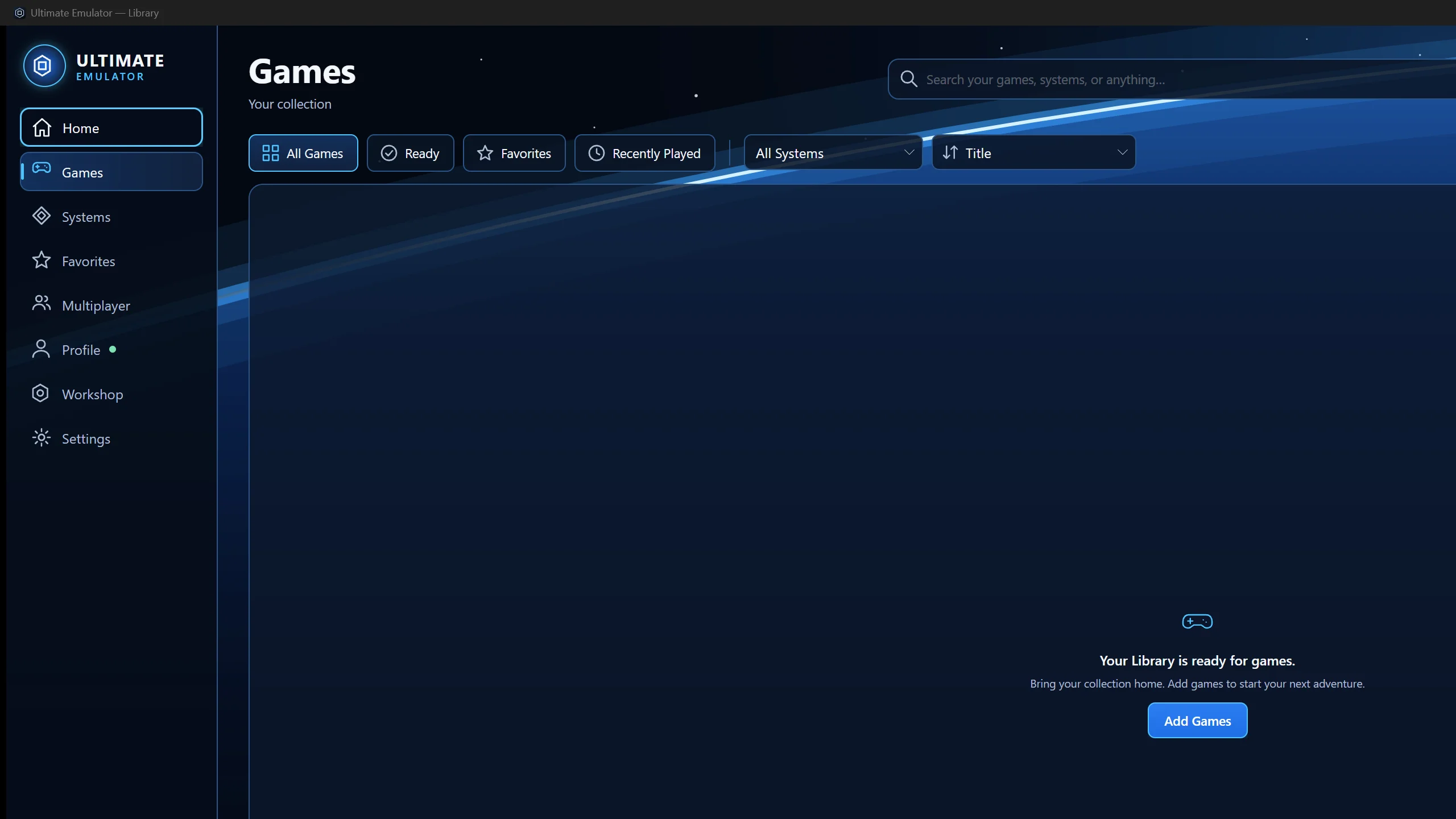
Games is your collection. Before you add a folder, it offers Add Games; the filters across the top are All Games, Ready, Favorites and Recently Played. Captured from an earlier preview.
Open full-size capture02 / Find it fast
Every game, a few keystrokes away.
Games is built for collections of any size. Narrow the view with a quick filter, a system or a search, then change the order to suit how you play.
All Games, Ready, Favorites, Recently Played
One click across the top of Games switches between your whole collection, the games ready to play now, your favorites and what you played last.
Filter by system
Choose a system to see only its games. Where you have organized games into collections, you can filter by those too.
Sort your way
Sort by title, recently added, last played, release date, play time or most played.
03 / One game, everything about it
Everything about a game, on one page.
Open a game to see its details page. This is where you start playing, pick up where you left off and make the game your own.
- Play
- Start the game.
- Continue
- Resume from where you left off, when there is a saved place to return to. See the Save States guide.
- Manage States
- Open this game's save states: save, load, rename or remove them.
- Game Settings
- Customize this game only — its details, artwork, collections, tags, controls and graphics.
04 / Make it yours
Your covers. Your descriptions. Your PC.
Ultimate Emulator reads each game's own files — its header, disc information and file name — to identify it. It never looks games up or downloads artwork in the background. When you ask it to, it can download available details and artwork for your games.
Edit the details
Change a game's title or description and save your changes. Reset Title and Reset Description return to what the game's own files say.
Add covers and screenshots
Change a game's cover or hero image, or add screenshots from your own image files. You can also import a whole folder of artwork you already have.
Download details and artwork
Settings → Library → Metadata & Artwork can fill in missing game details, cover art, title screens and screenshots from the Libretro database and thumbnails. Artwork is only downloaded when you request it, and it is kept on your PC.
Collections and tags
Create collections and add tags to group games the way you think about them. Both work with search and filters.
05 / Keep your place
The games you love, always close.
Two shortcuts keep the games you care about most within reach.
Mark the keepers
- Use Add to Favorites on any game.
- Find them under Favorites in the left navigation, or with the Favorites filter in Games.
- Remove from Favorites takes a game off the list without touching the game.
Pick up again
- Home shows what you were playing, ready to continue.
- The Recently Played filter in Games lists your latest sessions.
- Nothing to set up: it follows what you play.
06 / Folders change. Your library keeps up.
Managing game locations.
Your games stay where you keep them. The library records where they are and what you have added, such as artwork, collections and favorites.
In Settings → Library → Game Folders you can:
- Add another folder at any time.
- Turn a folder off with Use this folder, without removing it.
- Remove a folder with Remove…, then choose Remove from Library. Your game files on disk are not deleted.
- Run Scan for Games after you move or add games.
07 / Get back to your games
When a game is missing.
Start with the folder, then the system, then the firmware. These checks solve most library questions.
A game I added does not appear.
Check that its folder is listed and turned on in Settings → Library → Game Folders, then run Scan for Games. Make sure the game is for one of the included systems; games for systems that are not included in this release are not added.
A game appears, but it is not in the Ready filter.
Its system probably needs BIOS or firmware you have not provided yet. Open Systems to see which systems show Needs BIOS, and follow the in-app Firmware & BIOS guidance.
A game is listed under the wrong system.
Open the folder's Options in Settings → Library → Game Folders and set its System, then scan again. Keeping each system's games in their own folder avoids this.
My games have no cover art.
Artwork is only downloaded when you ask for it. Open Settings → Library → Metadata & Artwork and choose Download Metadata & Artwork, add a cover from the game's details, or import a folder of artwork you already have.
I moved my games and the library looks wrong.
Add the new folder, remove the old one from the library, then run Scan for Games. If readiness still looks out of date, use Repair Library under Settings → Library → Advanced.