Ultimate Emulator / Feature guide
Play Together
Across the room. Across the world.
Bring another player into your world. Play locally on one PC for free, or connect across PCs with Premium: ROM Mode, Link Cable, and LAN or direct-IP sessions. The right mode depends on your system, core and game.
- Local multiplayer
- Internet & LAN play
- Friends & invites
01 / Find your way to play
One room. Or miles apart.
Three ways to share the experience. Start with where your players are, then choose a mode your game supports.
Local & couch play
Multiple players share one emulated system on one PC. Connect your controllers and use the game’s supported multiplayer mode. Atari Lynx and Game Gear can also link two consoles on one PC. No account or Premium required.
Set up local playROM Mode
Native Multiplayer: each player runs the game locally while inputs are synchronized across the session, online or over LAN and direct IP. Supported systems vary. PlayStation and N64 have accepted two-player Native modes.
Connect across PCsLink Cable
Internet Linked Play: connect compatible GB, GBC and GBA games across PCs. Each PC runs the linked handheld group locally. Link behavior and compatibility depend on the game.
Check supported systems02 / Across the room
Same screen. Shared moments.
For a game with local multiplayer, keep it simple: one PC, the game’s supported player count, and a controller for each player.
-
Connect your controllers
Make sure Windows detects each controller before you start.
-
Check player assignments
Review controller mappings and player assignment in the application’s Settings. Each player needs the intended input.
-
Start the game’s multiplayer mode
Use the game’s own player-selection or multiplayer options. Available players and modes depend on the game and core.
Two consoles on one PC: Atari Lynx and Game Gear can link two consoles on the same PC, free and with no account. Open the game’s details, choose Local Link Cable (Game Gear) or Local ComLynx (Atari Lynx), and pick a different connected controller for each player. Game Boy Advance cannot link two consoles on one PC.
Local multiplayer and Native Multiplayer across PCs are different setups. Native online support does not guarantee every local peripheral or player count.
03 / Across the world
From your library to a shared session.
Play Together brings supported online sessions into one experience. Here is the path from opening Multiplayer to playing with another person.
-
Open Multiplayer
Choose Multiplayer in the application’s left navigation. This is your starting point for supported online sessions. Local couch play starts with your game and controllers on one PC.
Ultimate EmulatorApplication capture / earlier preview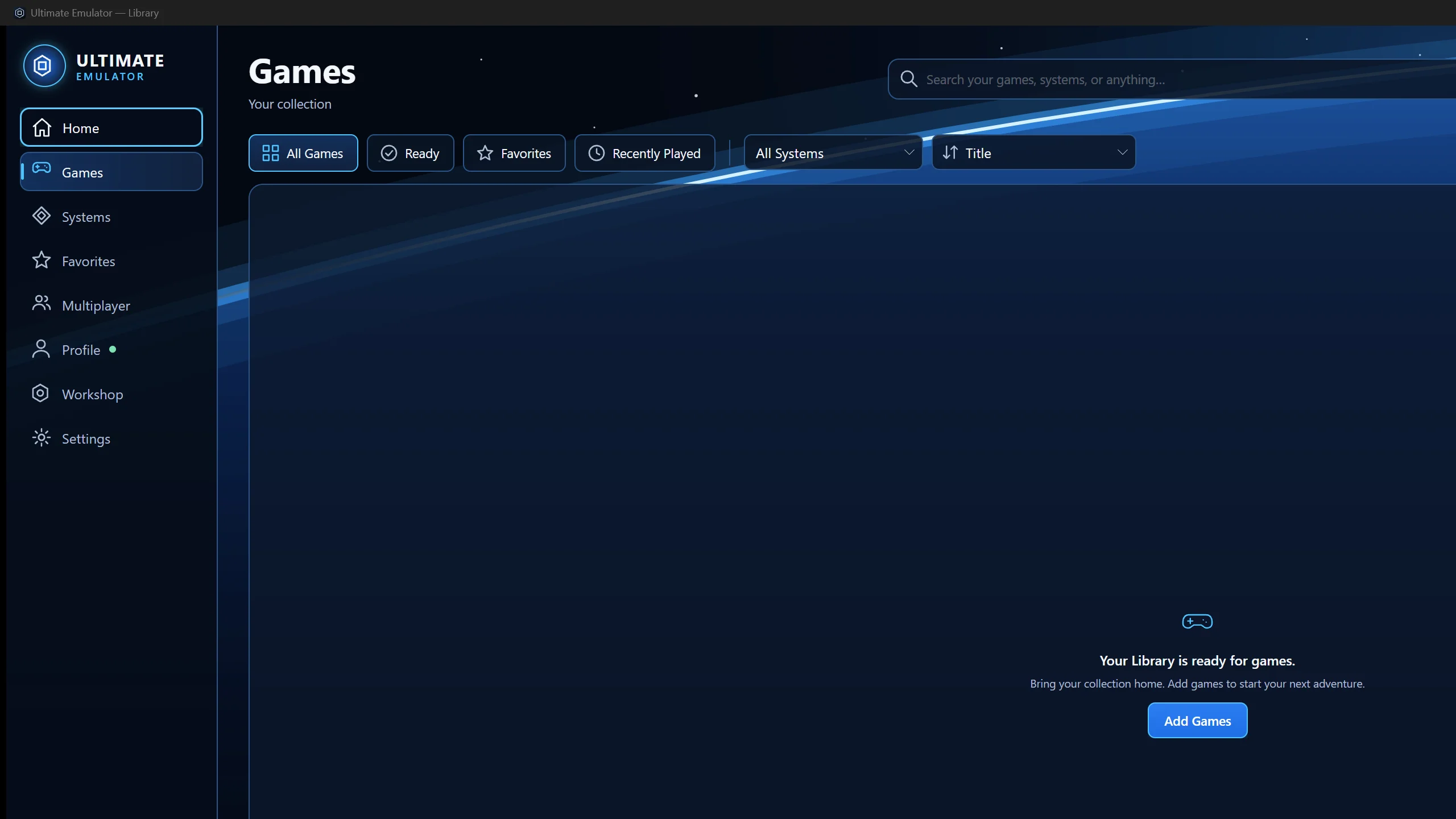
Start from Multiplayer in the left navigation. Captured from an earlier preview, this shows the Games screen, not an active session; games are supplied separately.
Open full-size capture -
Choose the right kind of play
Multiplayer asks you to Choose how to play. ROM Mode runs a supported game on each PC and keeps the players in step (Native Multiplayer). Link Cable connects compatible Game Boy, Game Boy Color and Game Boy Advance games (Internet Linked Play). Stream Mode is the third choice. Not every system supports every mode, and not every game supports every mode.
-
Host a compatible game
Choose a game from your own library that supports the selected mode, then use the hosting controls to create an online session. Invite another player or share the session’s join code. Advanced & Manual Connections also offers LAN and direct-IP connections, which need Premium too.
-
Join the other player
Accept an invitation, join a friend’s session or use a join code. Hosting and joining both require Premium, over the internet or on your own network. A join code or a direct connection does not bypass that requirement.
-
Check the players before you play
Confirm that the expected players have joined and the connection is ready. Check your controller and player assignment before starting. If someone is missing, resolve the invitation or connection first.
-
Start together
Start the game’s supported multiplayer mode. Native sessions share gameplay inputs while each PC renders locally. Linked sessions connect the supported handheld group across PCs; the game still determines how its link mode works.
04 / The right game. The right mode.
Support is specific.
The included core matrix is the source of truth. An online profile is a supported connection path, not a promise that every game, player count or peripheral works.
ROM Mode across PCs
- Atari 2600
- NES
- Game Boy
- Genesis
- SNES
- PlayStation
- N64
- Game Boy Color
- Game Boy Advance
Core qualification varies. PS1 and N64’s accepted Native modes are two-player.
Link Cable across PCs
- Game Boy
- Game Boy Color
- Game Boy Advance
GB/GBC use a two-console linked group. GBA linked compatibility varies by title and requires its BIOS.
On one PC only
- Odyssey²
- Intellivision
- ColecoVision
- Atari 5200
- SG-1000
- Master System
- Atari 7800
- TurboGrafx-16
- Atari Lynx
- Game Gear
These included cores remain local. Their local capabilities still depend on the core and game; an online session cannot add a missing mode.
05 / Your people. Your next session.
A little less coordination.
Connected Social lets you see which friends are online and what they are playing, add friends, exchange messages and send invitations.
Invite someone into the session.
Create a supported session, then invite a friend. They can accept the invitation, join the session or use its join code. Every online participant needs Premium.
Presence helps you find a time to play. It does not guarantee that a friend’s game, system or network can join the mode you selected.
06 / Get back to playing
When something gets in the way.
Start with the game, then the controllers, then the connection. These quick checks cover the most useful first steps.
The second controller is not responding.
Check that Windows recognizes the controller, then review its mapping and player assignment in Ultimate Emulator’s Settings. Check the game’s own player-selection screen too. A second connected controller does not make a single-player game multiplayer.
My game or system does not offer the mode I want.
Check the system capability matrix and the game’s multiplayer requirements. Support varies by system, core and title. A Native profile is not the same as handheld linked play, and a profile cannot add multiplayer to a game that does not support it.
My friend or session is not visible.
Check that both players are signed in to the intended Deep Sky accounts and have Premium for connected Social and online play. Confirm that the host has created a session and that the invitation or join code is for that session.
The connection fails or is interrupted.
Check both players’ internet connections and try the session again once they are stable. Some networks block direct connections. Hosted relay connections remain Coming Soon, so a connection cannot be guaranteed on every network.
Linked play does not start as expected.
Choose Link Cable with a compatible Game Boy, Game Boy Color or Game Boy Advance game. Check each player’s required content and firmware; GBA requires its BIOS. Follow the game’s own link instructions. Linked compatibility is title-dependent, and Game Boy Advance cannot link two consoles on one PC.
Hosted relay connections remain Coming Soon. Direct connectivity and game compatibility can limit online sessions.